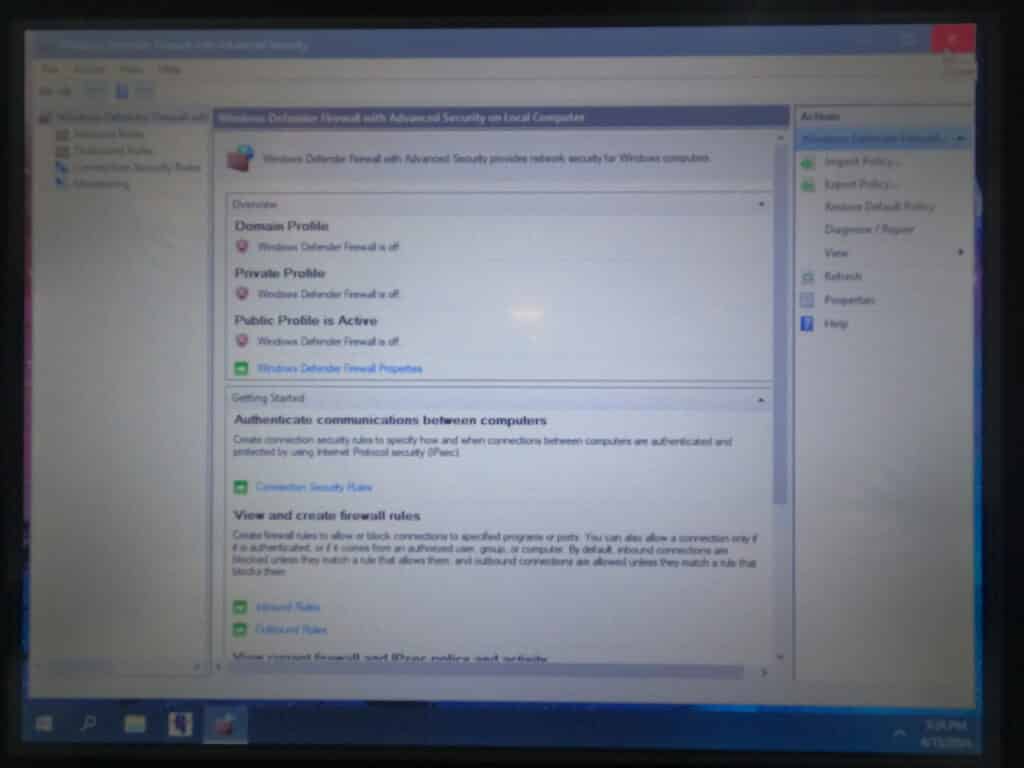

This guide will show you how to turn off Windows updates and Windows Defender Firewall on Windows 10. If you have these on you may experience issues with the machines performance.
Scan to View on Mobile Device

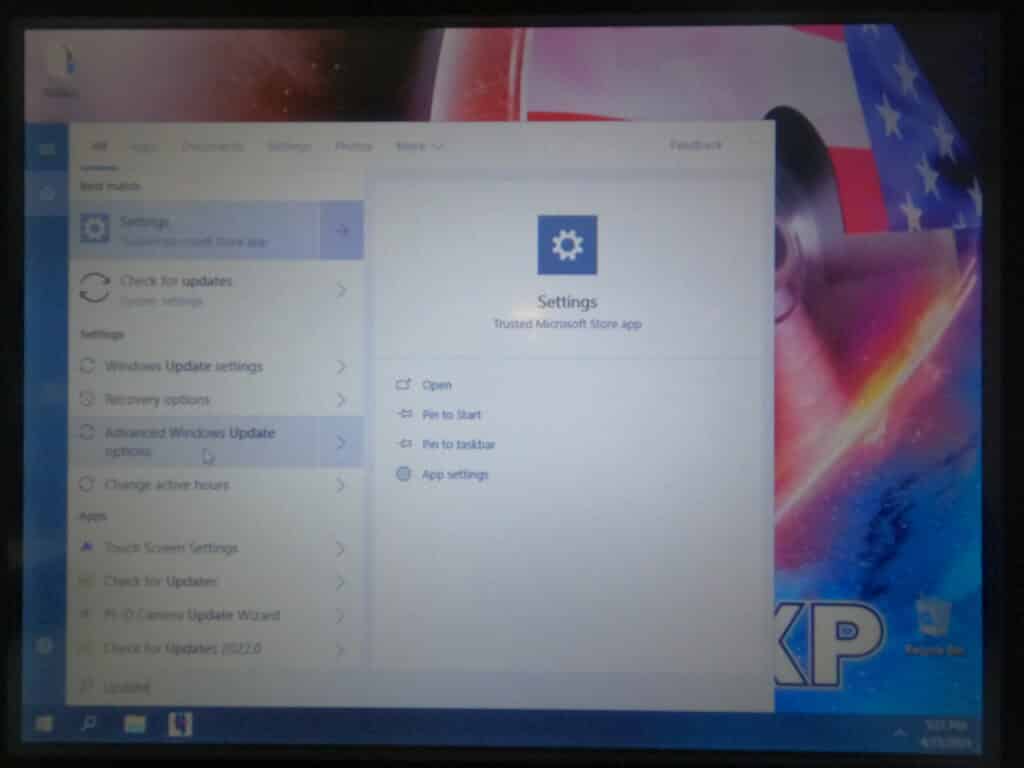
Select the magnify glass at the bottom of the desktop and search update. “Select Advanced Windows Update”.
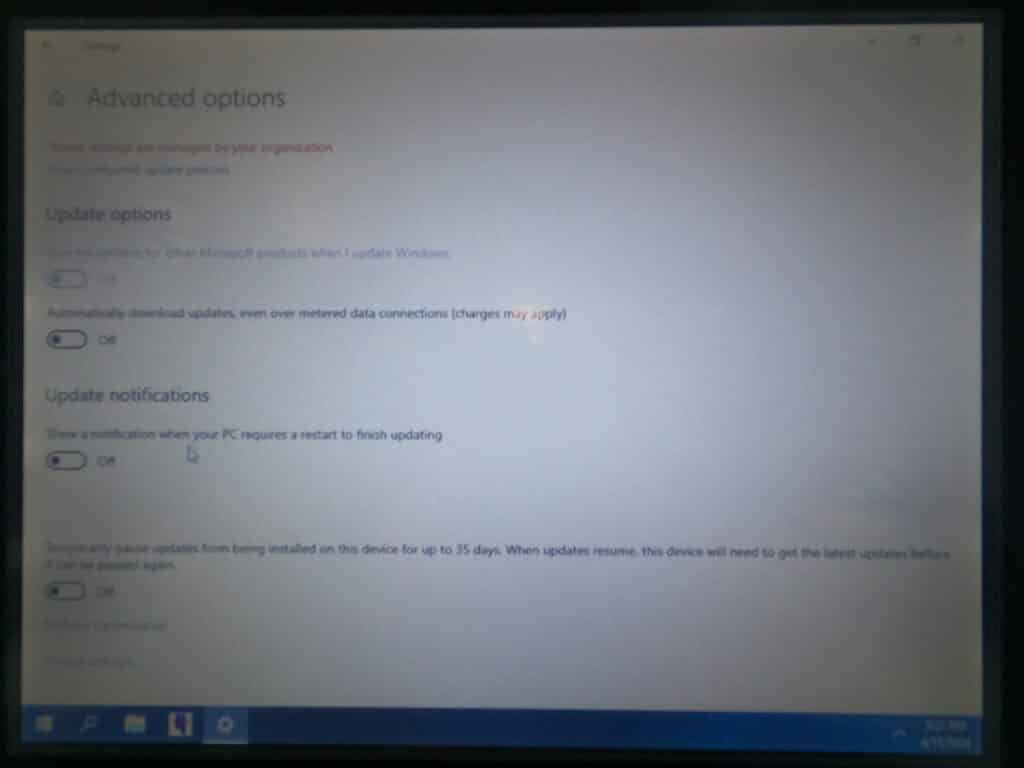
Check to make sure the auto updates, notifications and pause are turned off. If they are your updates are off and you can X out of this screen.
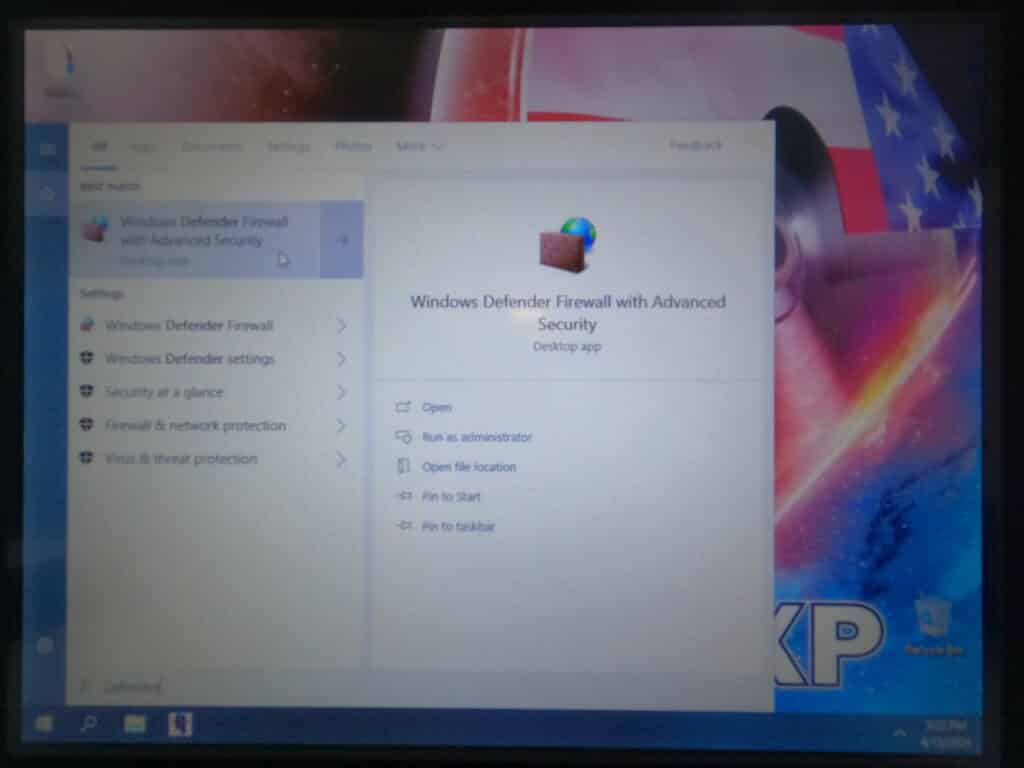
Select the magnify glass at the bottom of the desktop again and search Defender. Select "Windows Defender Firewall".
Select "Windows Defender Firewall Properties".
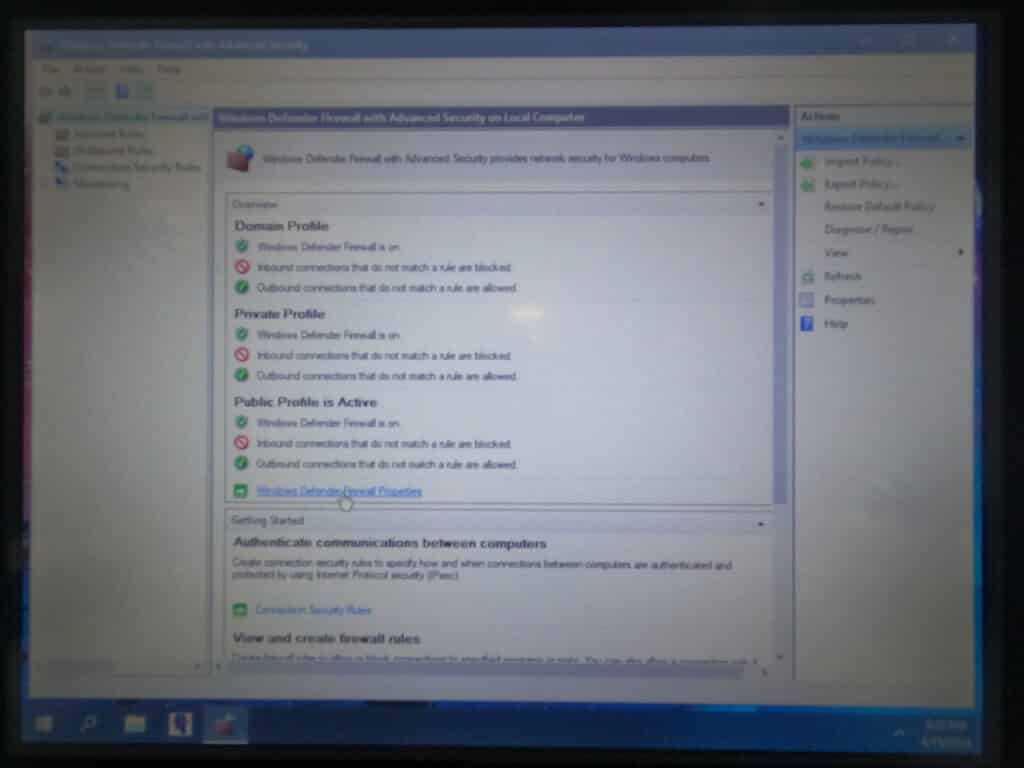
On the Domain Profile tab turn the Firewall State off.
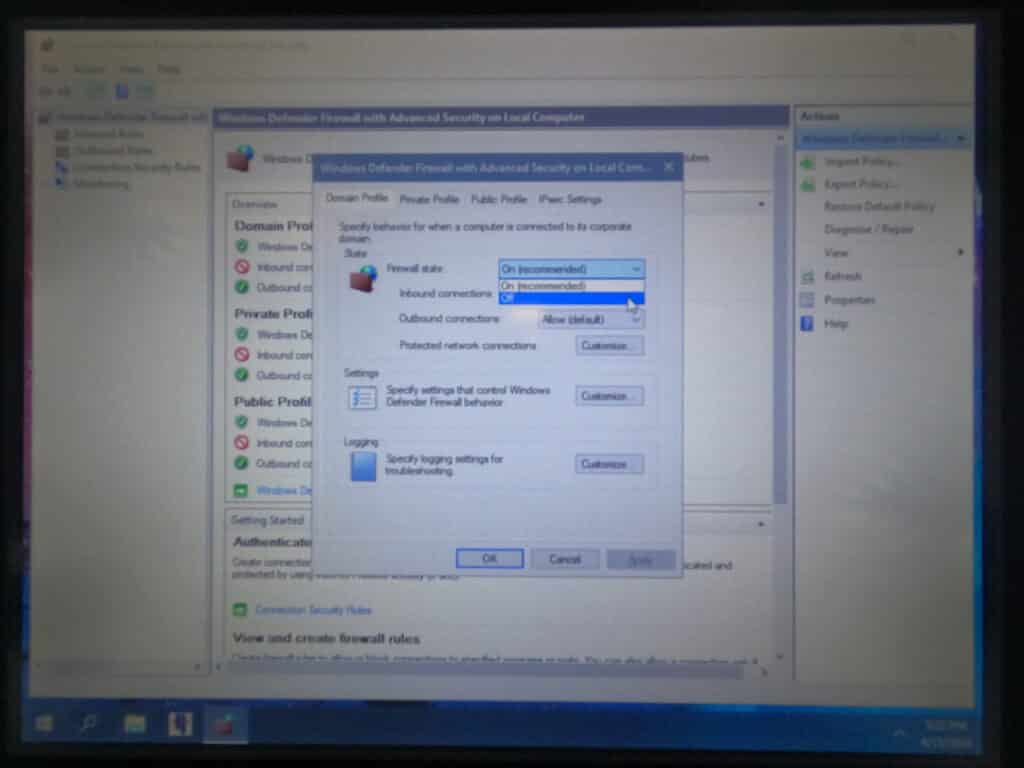
Select Apply.
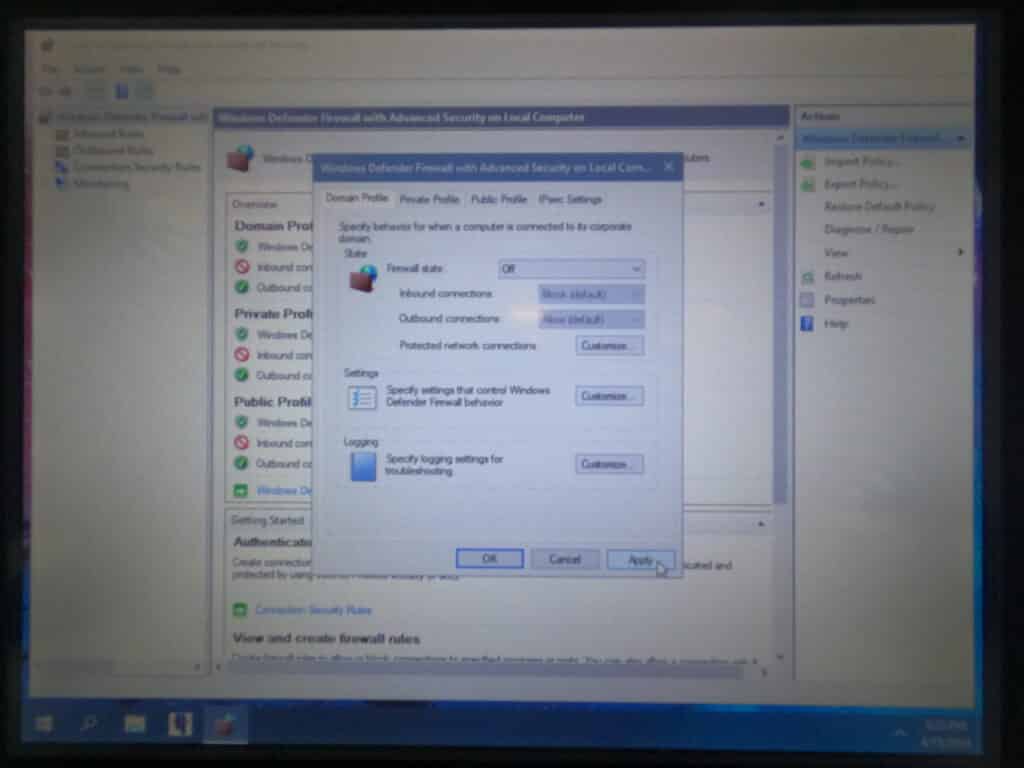
On the Private Profile tab turn the Firewall State off.
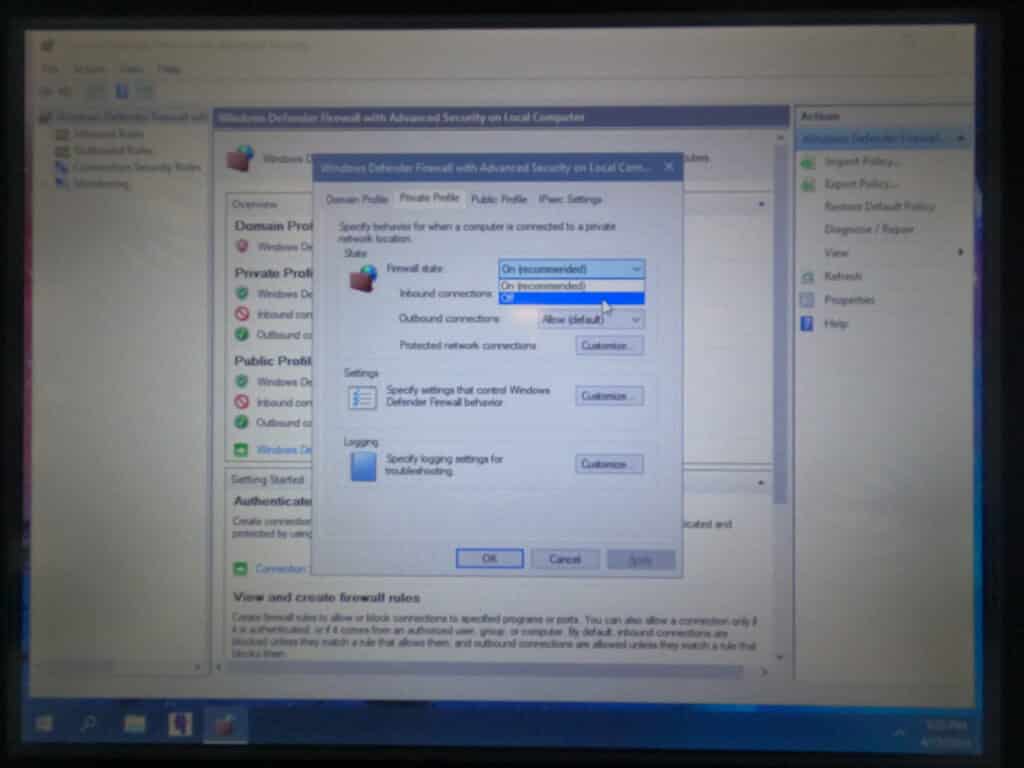
Select Apply.
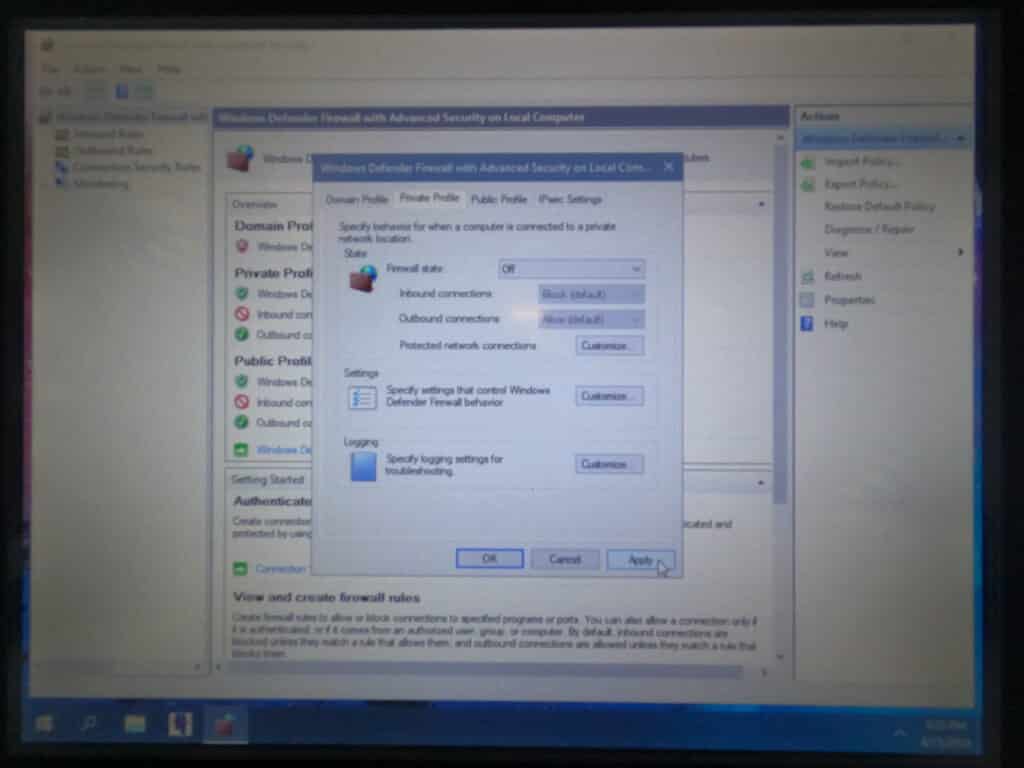
On the Public Profile tab turn the Firewall State off.
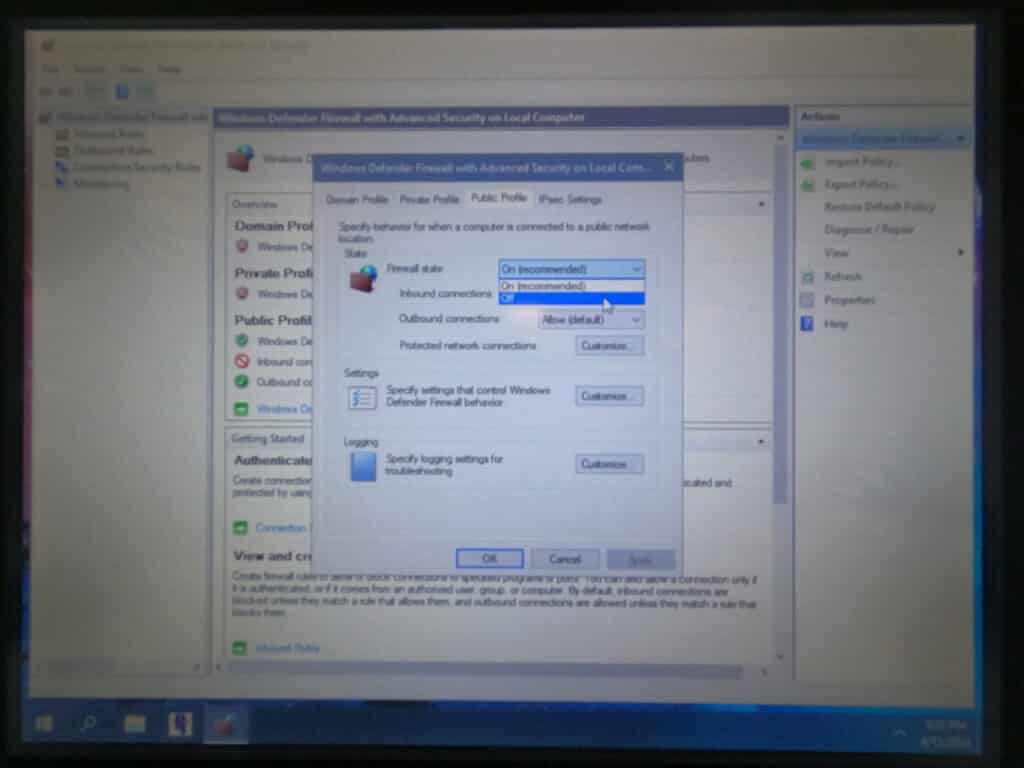
Select Apply.
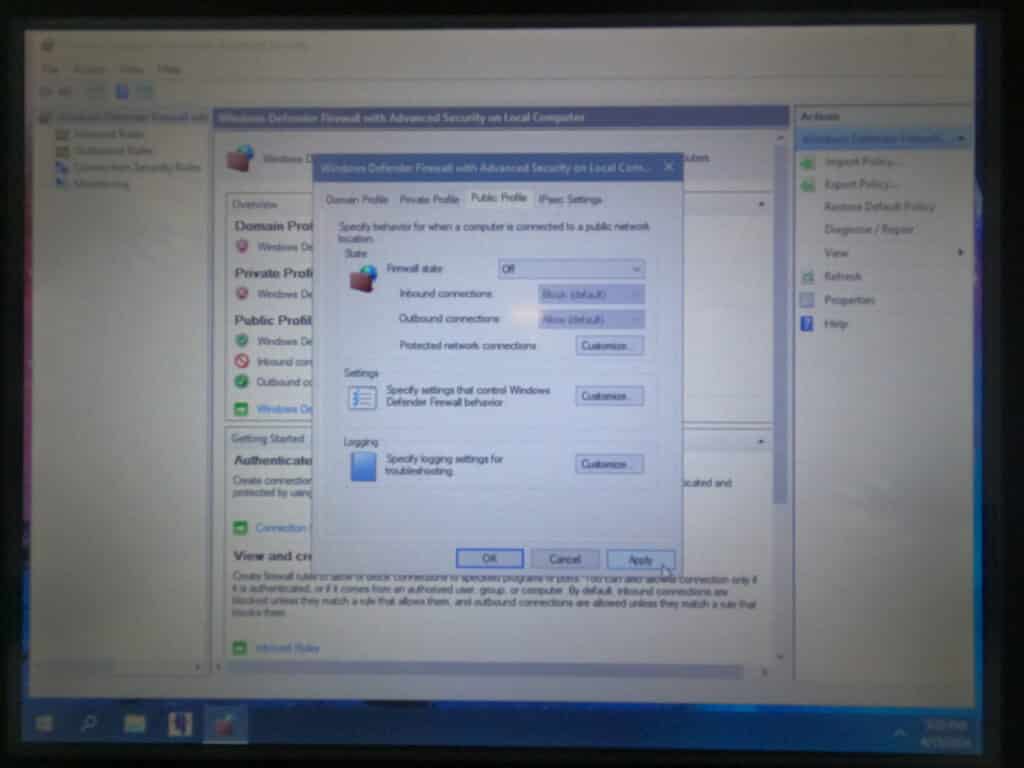
Select OK
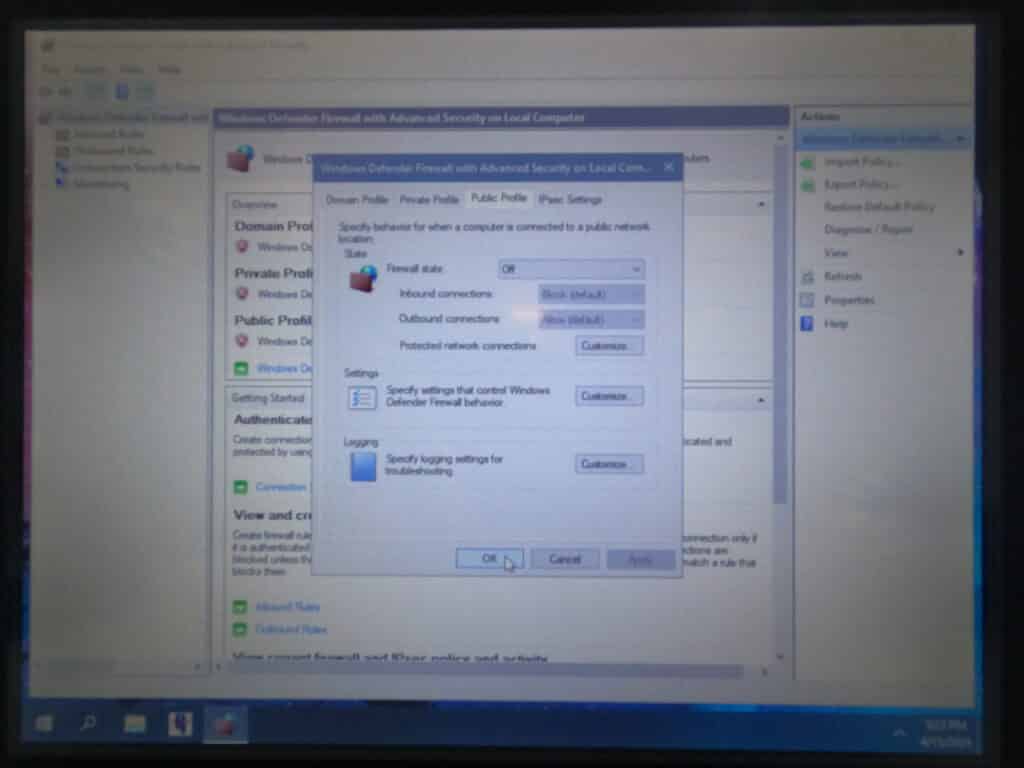
The Firewall is now turned off and you can X out. All out your Firewall Security should be done on your servers before the machine.