This guide will help you restore the values on your machine if they got erased out. This guide is for Voyager that are running Hypervisor/Windows 10. 1013: Axis/Axes not referenced alarm.
Scan to view on Mobile Device

Note: If not done properly you can mess up the saved values. If you are not comfortable doing this please contact Park Industries to assist.
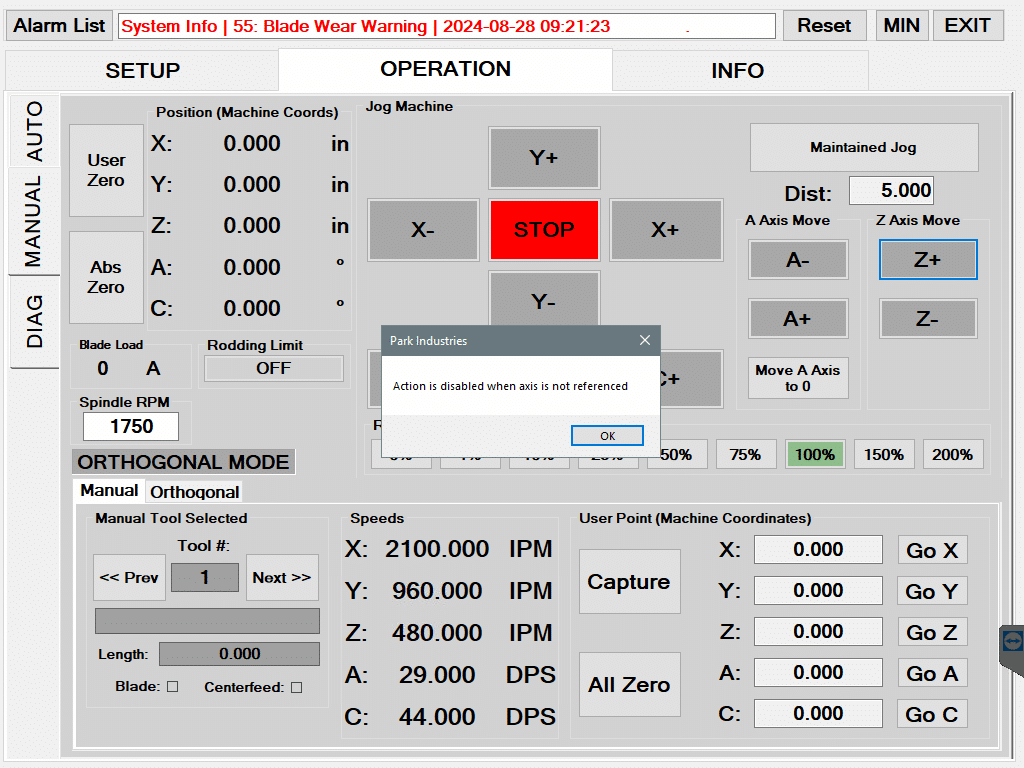
Here are is a list of things to check to see if you lost your values.
- Your alarm list will look like this
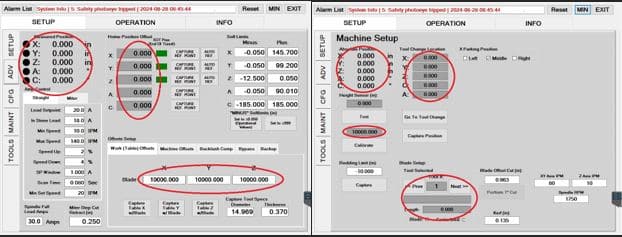
- In the Advanced Setup screen your values will look like this the dots by the axis will be black
- In the Machine setup screen the nozzle calibration will be 10000.000 and the blade length will be at 0.000
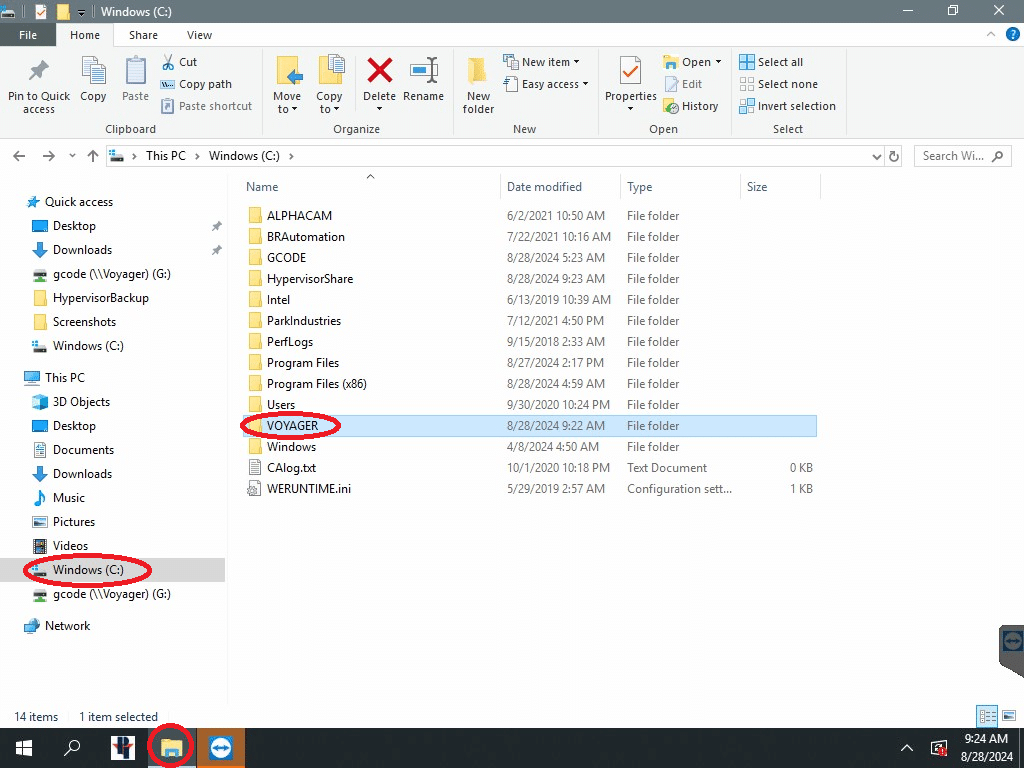
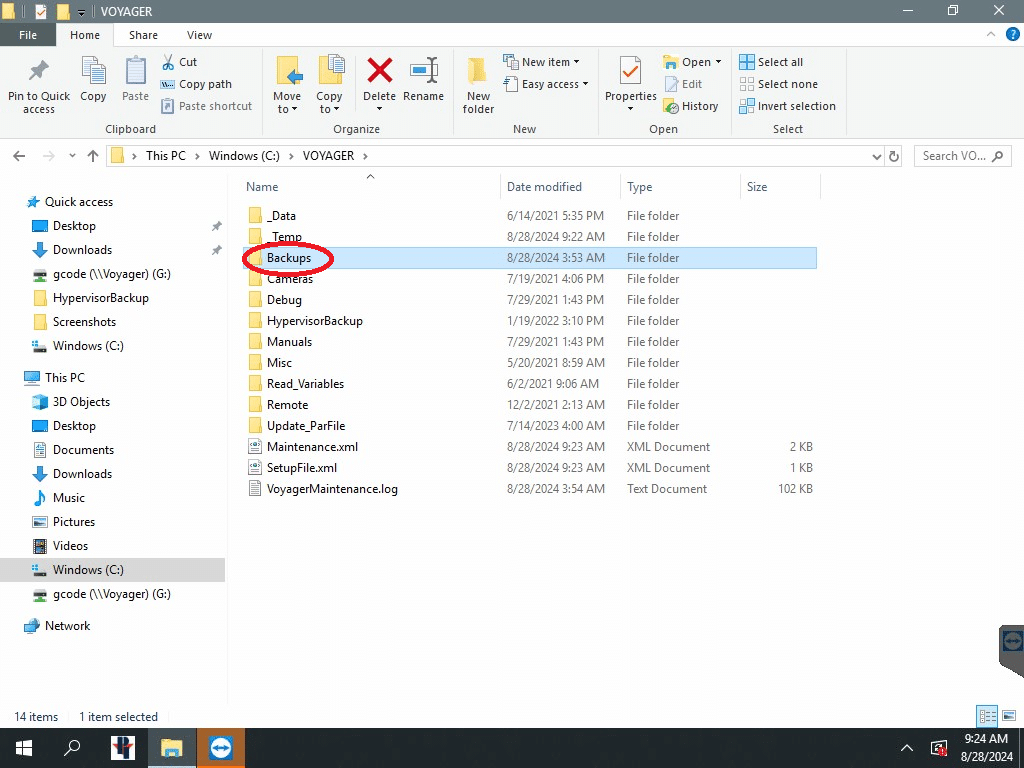
Exit out of the Voyager program. Go to your (C:) drive and open the Voyager folder.
Open the Backups folder. If you do not have this folder let Park Industries know so they can install it for you and help you resore your values.
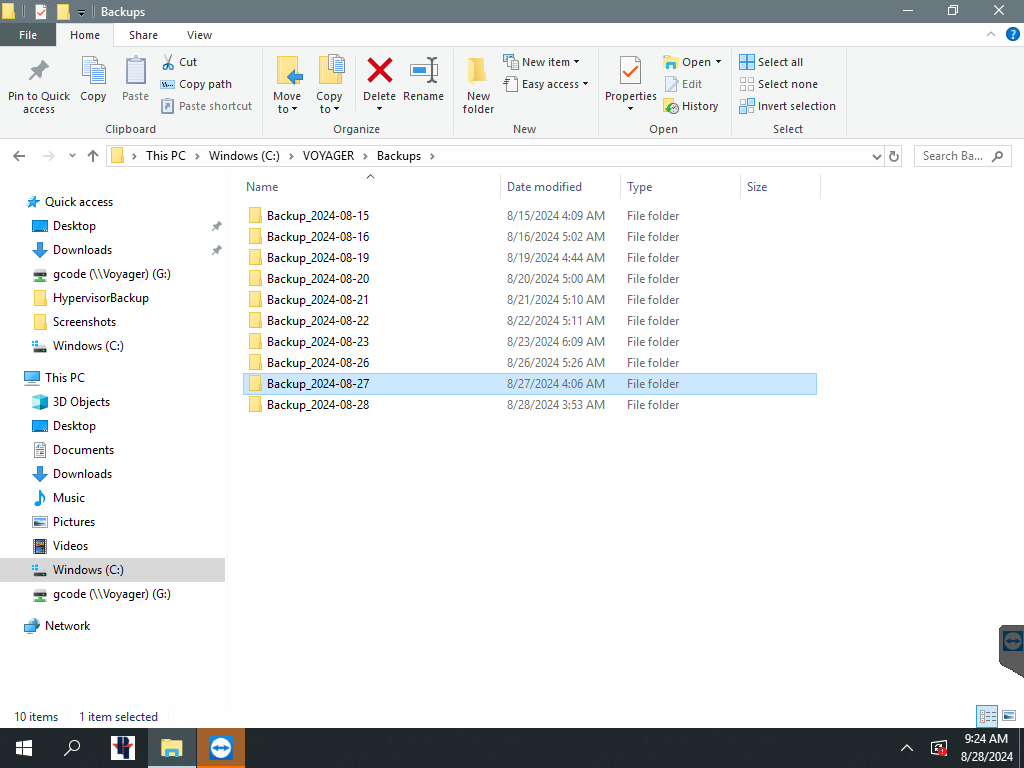
Open the file with the last known date that it was running good.
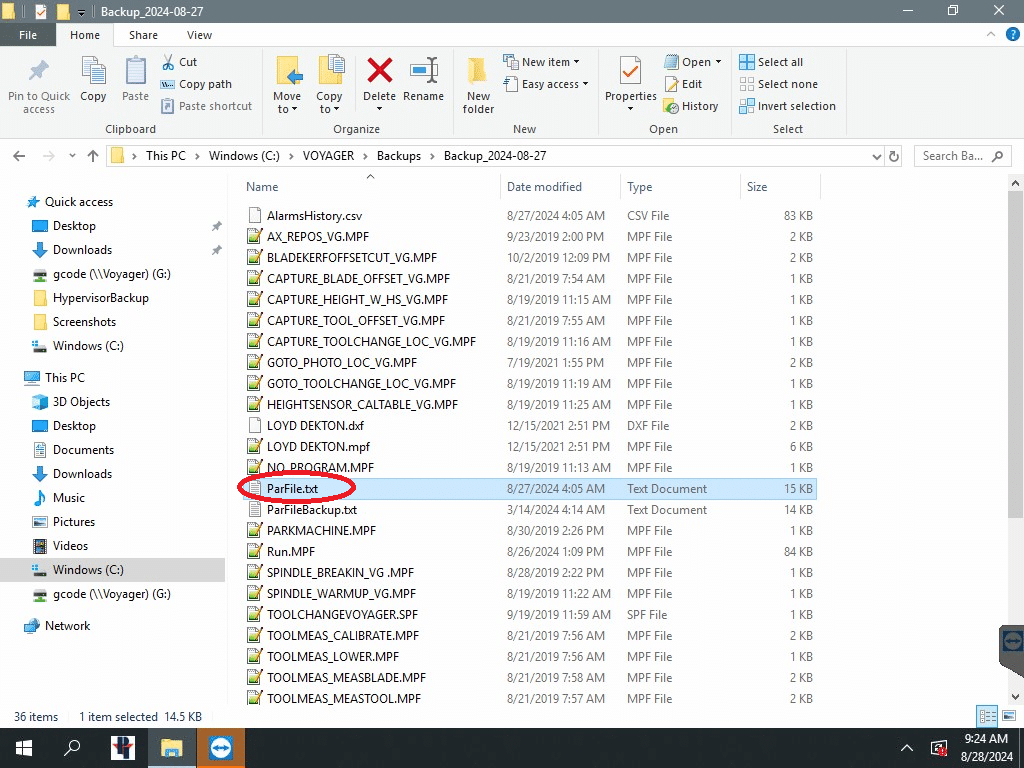
Highlight the file named ParFile.txt. It should have the same date in the date modified as the folder you opened.
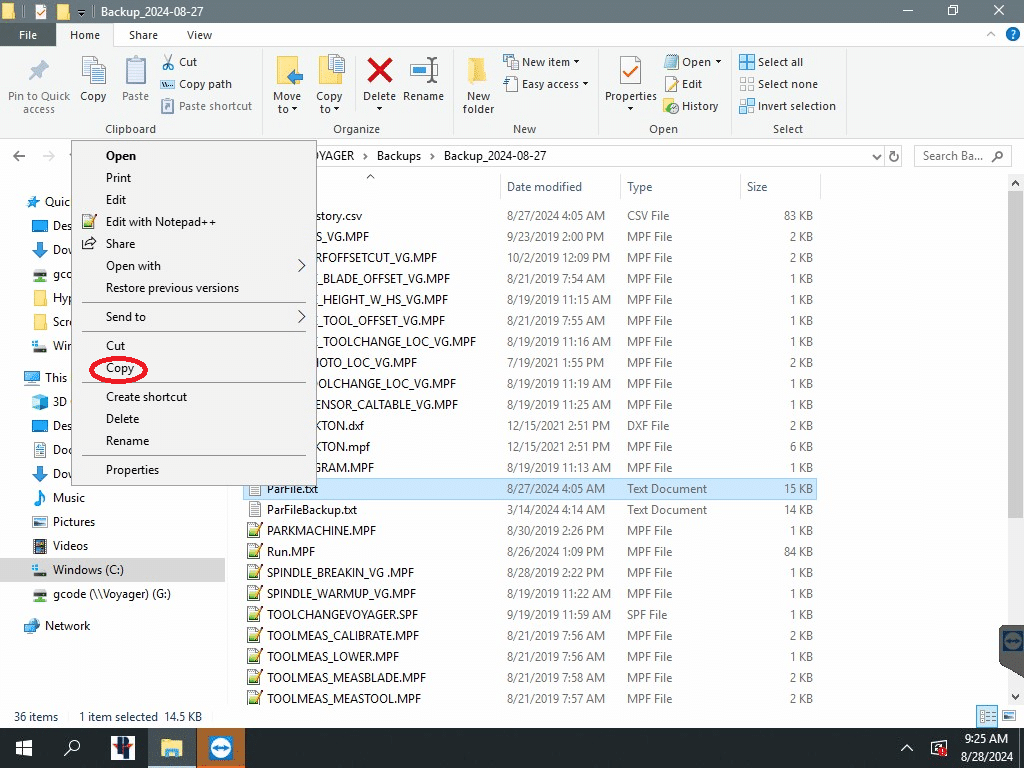
Right click on the file and select copy.
Go back you the Voyager folder and open the Update_ParFile folder.
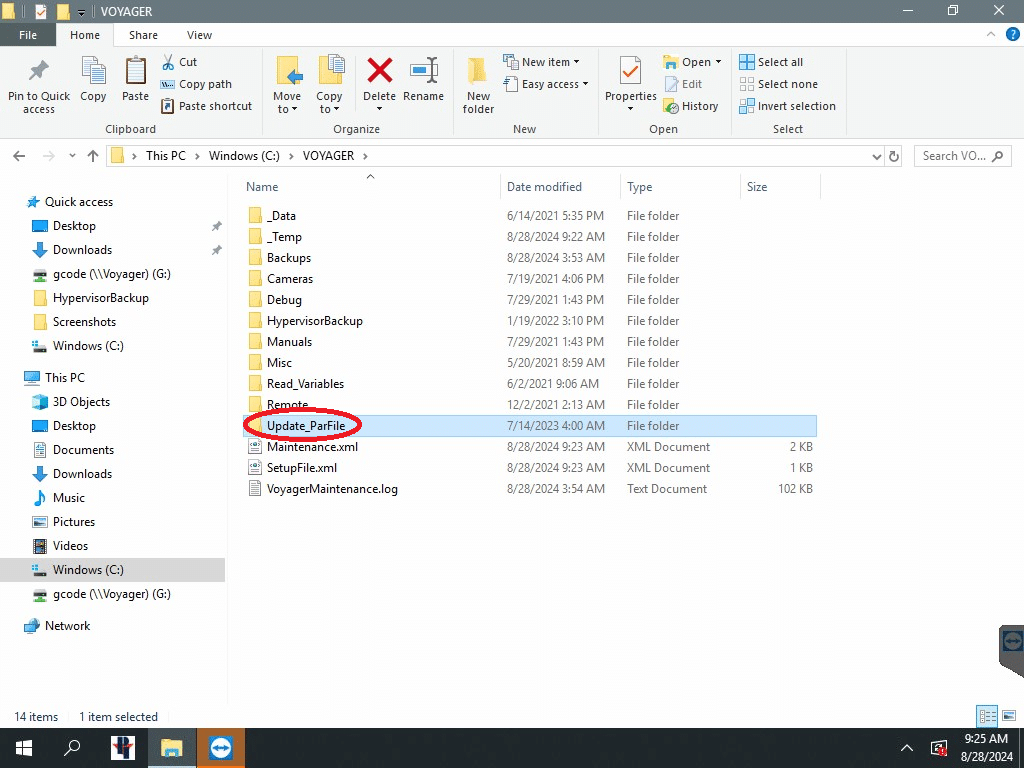
Right click in the open area on the folder and paste the ParFile.
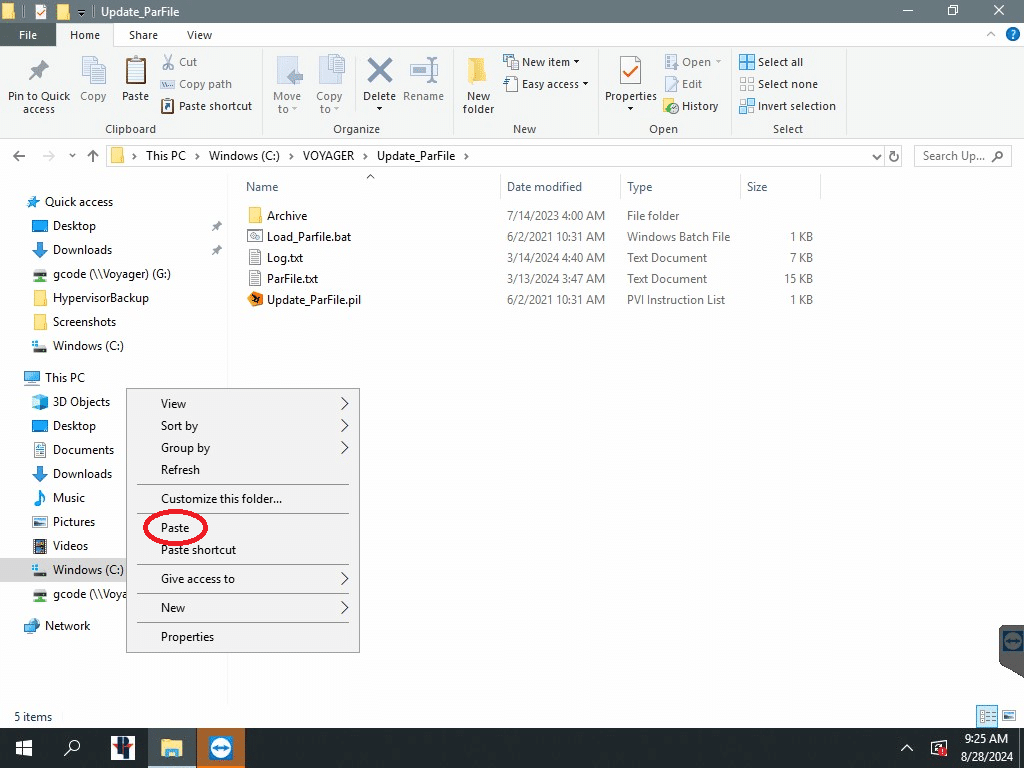
If you already have an old par file in this folder it will ask you if you want to replace it. Select Relpace the file in the destination.
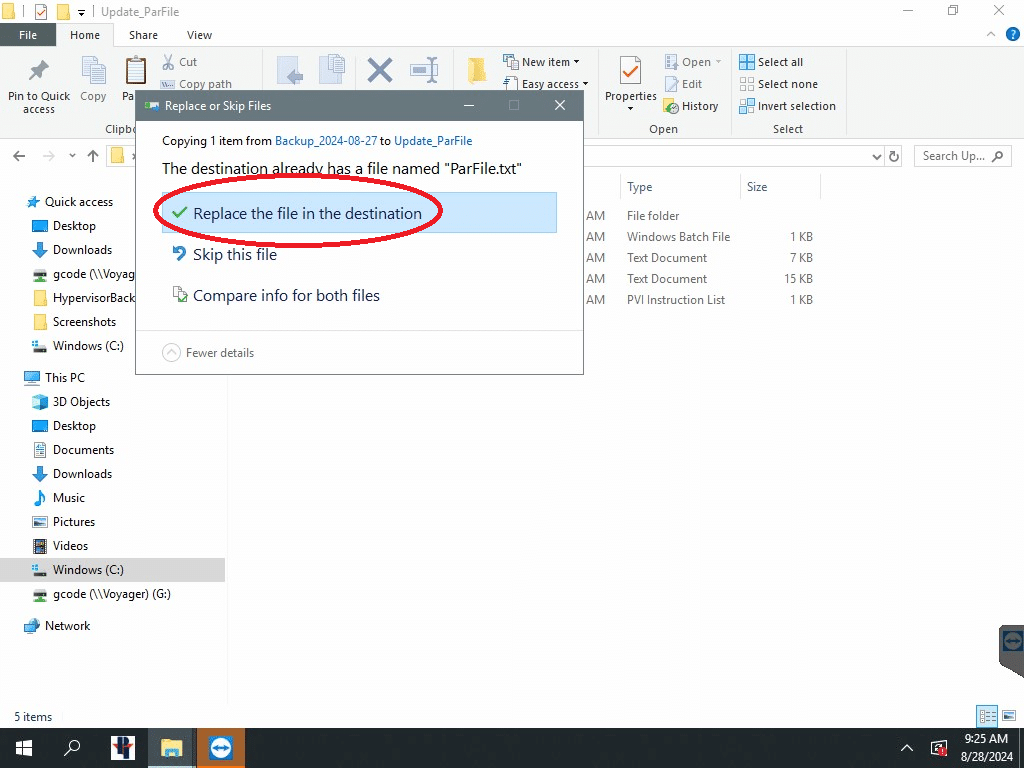
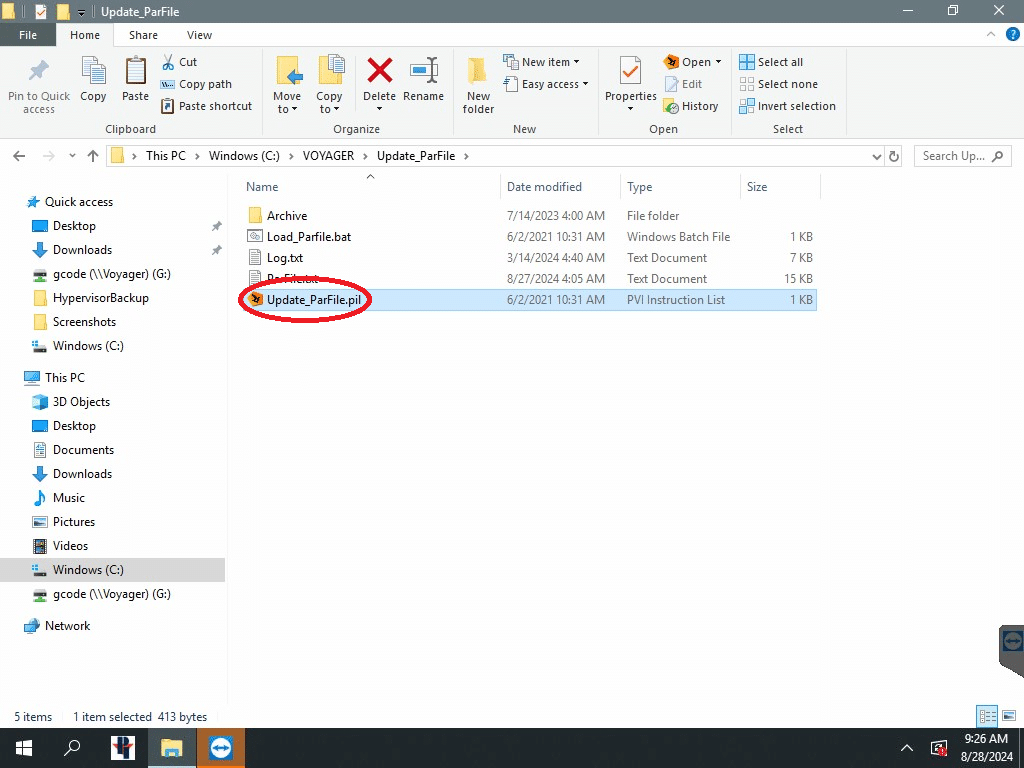
Double click the Update_ParFile.pil or Update_ParFile_New.pil program.
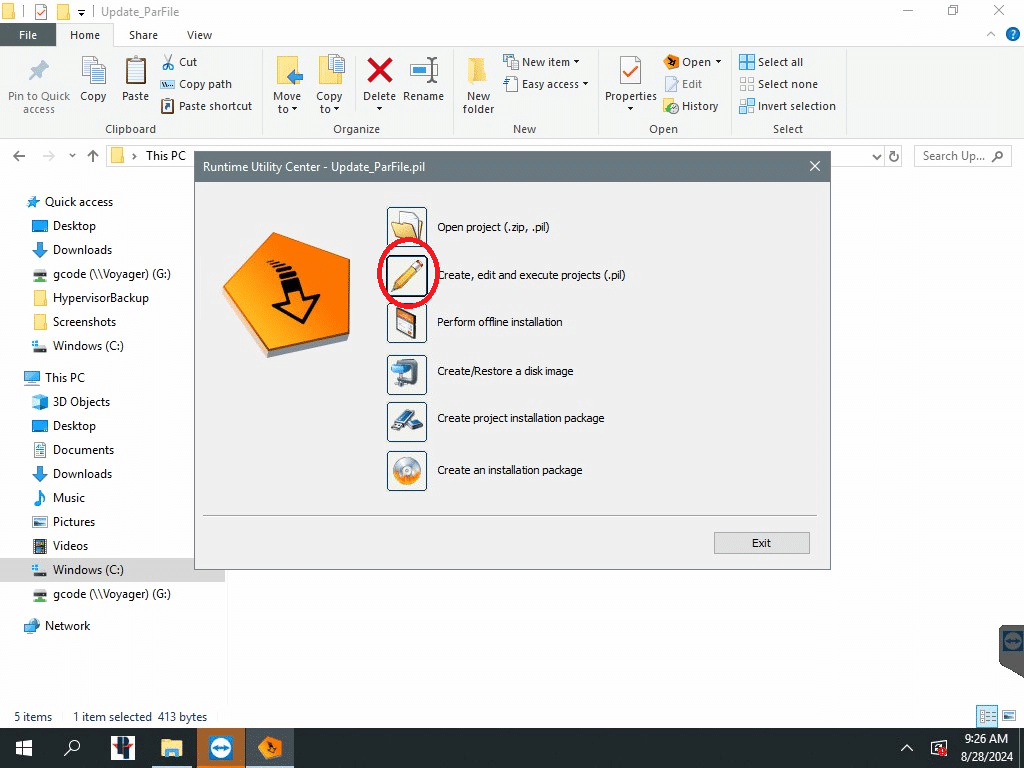
Click on the pencil next to Create, edit and execute projects (.pil)
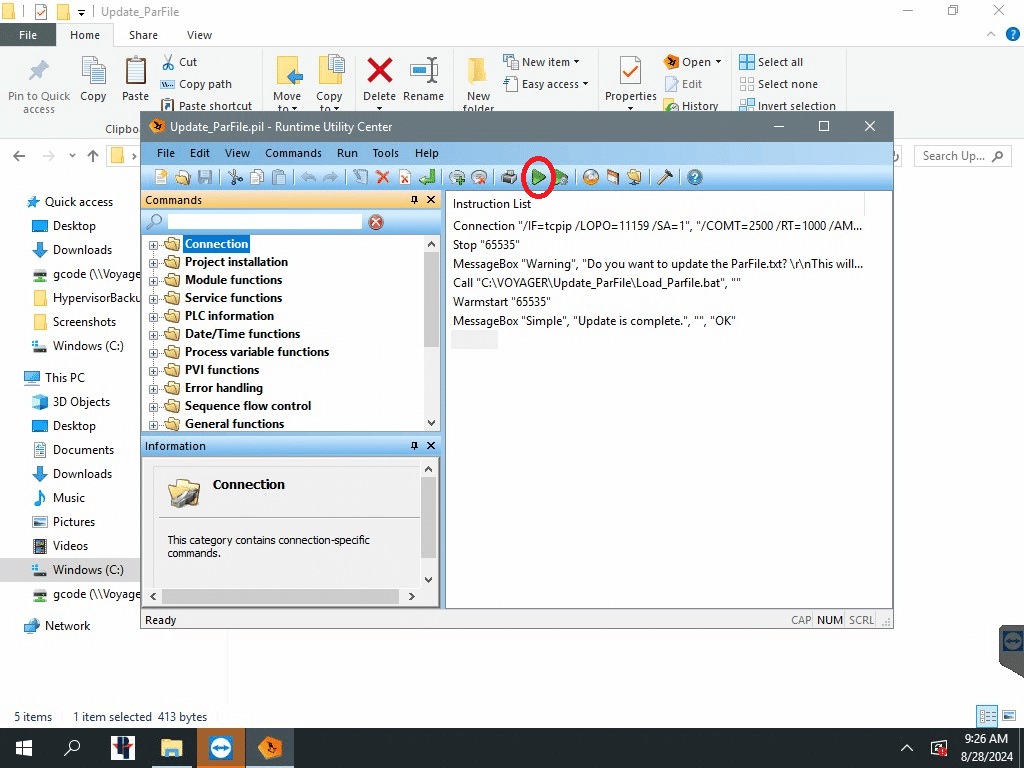
Click on the green “play” or Execute button.
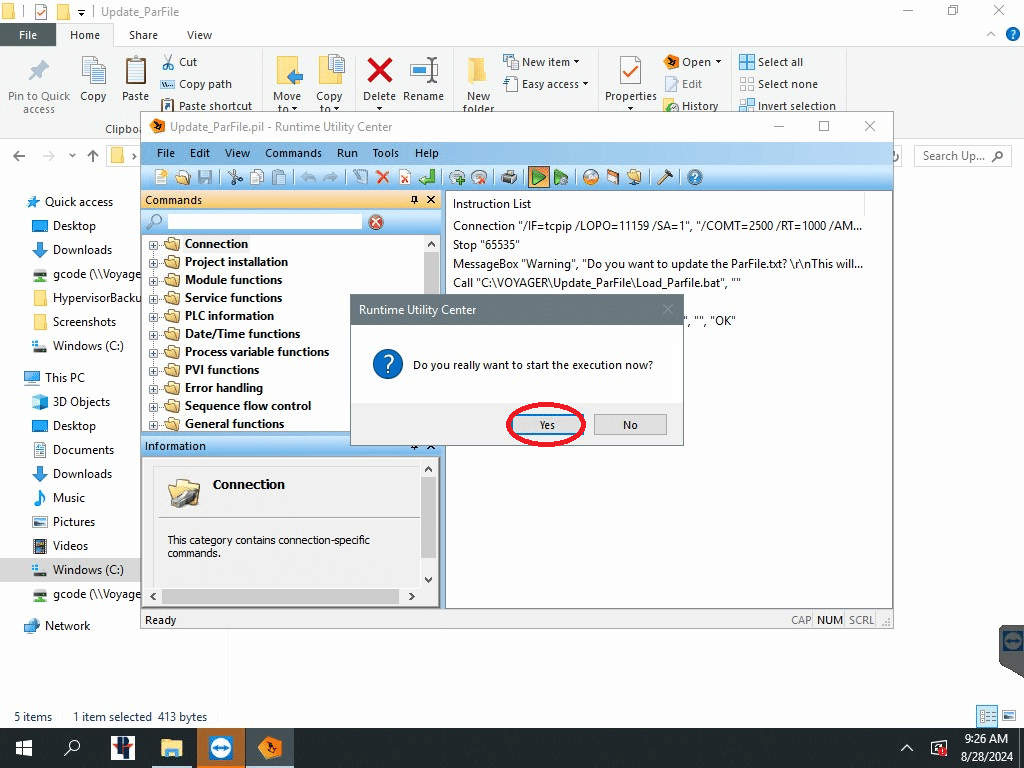
Select Yes.
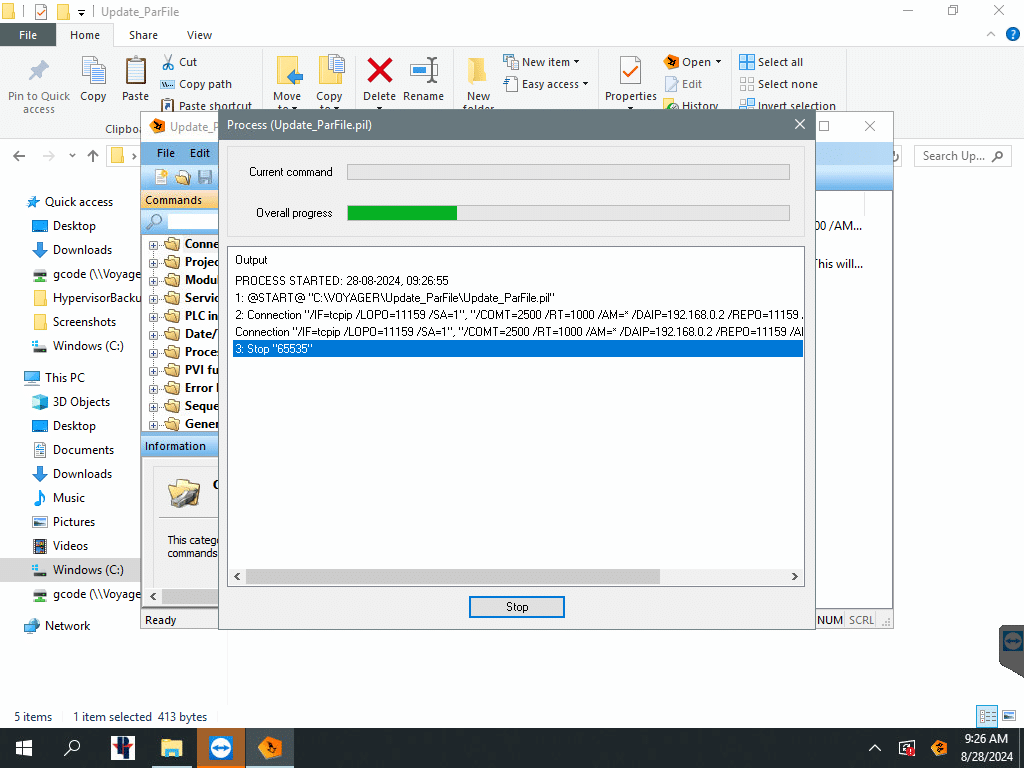
It will start to load the file. Do not do anything. It will take a minute or two.
It may ask you if you would like to overwrite the existing ParFile.txt. Select OK.
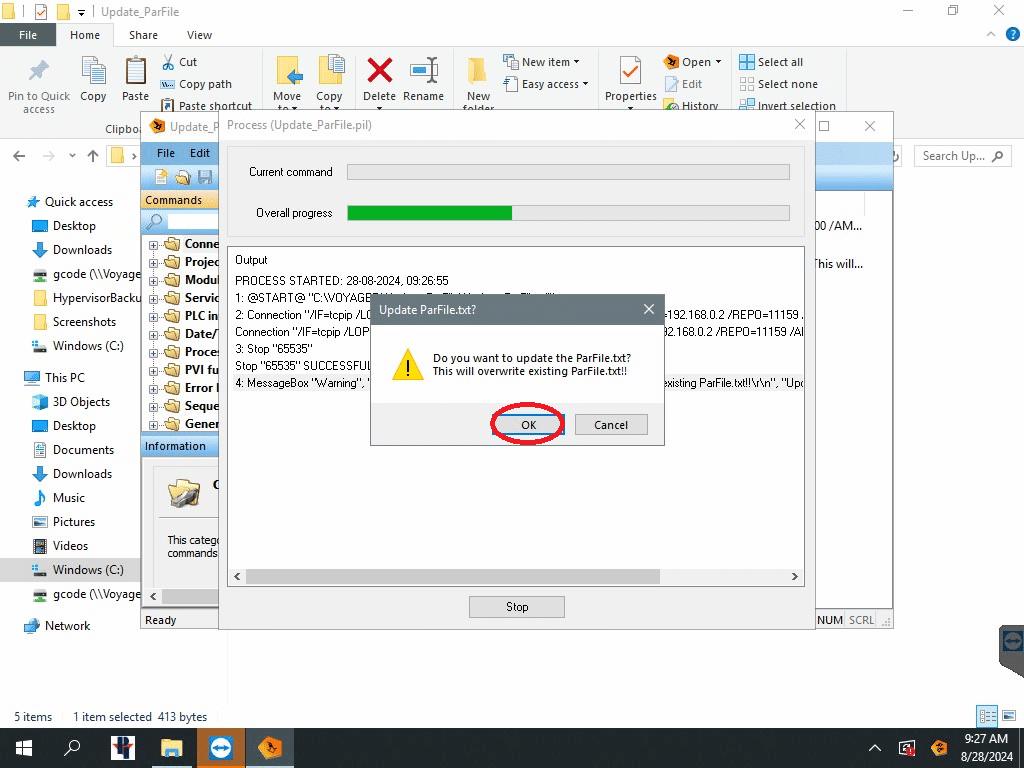
You may get a window that pops up. You do not need to do anything.
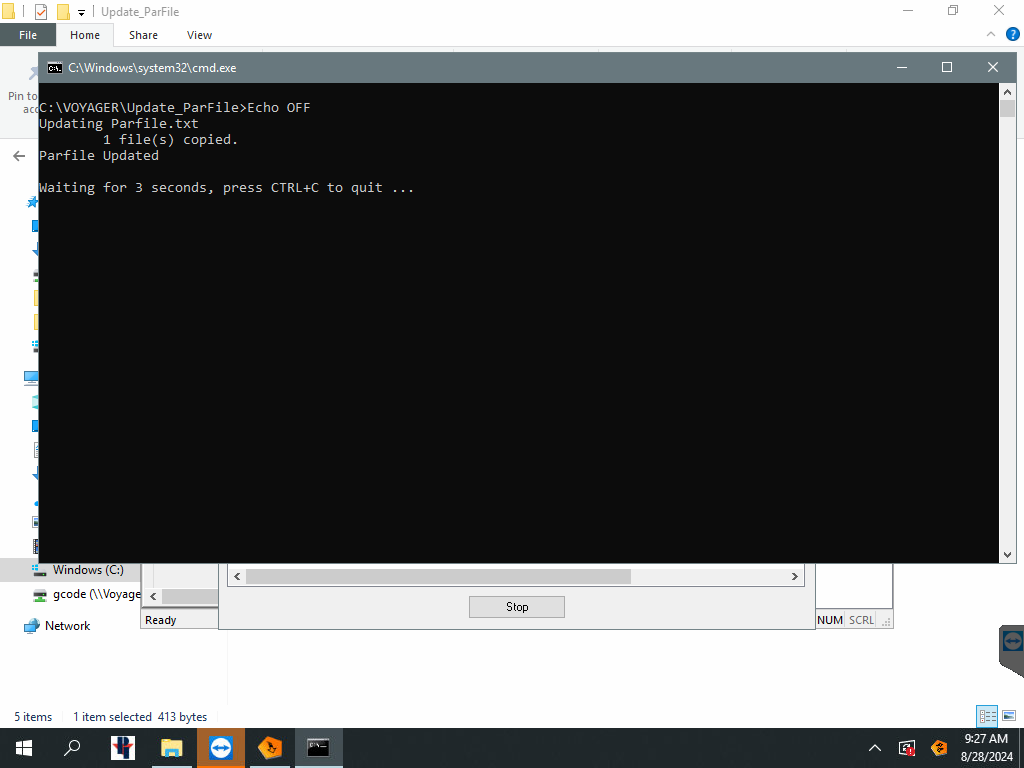
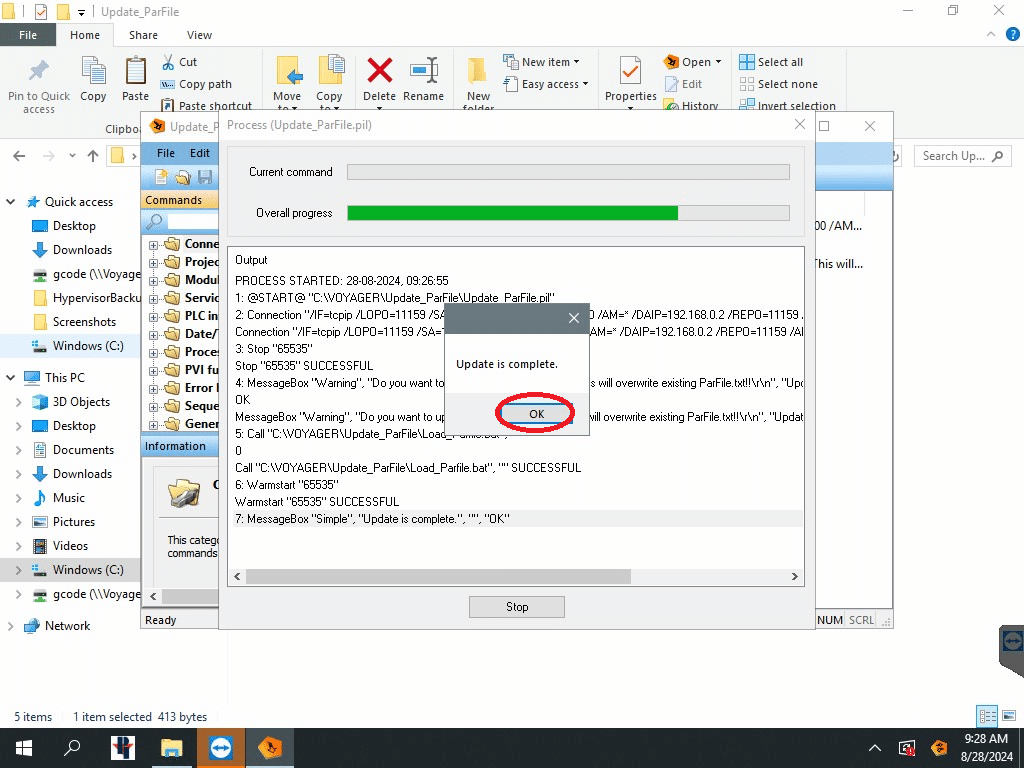
Once the update is complete seleect OK
Select Close.
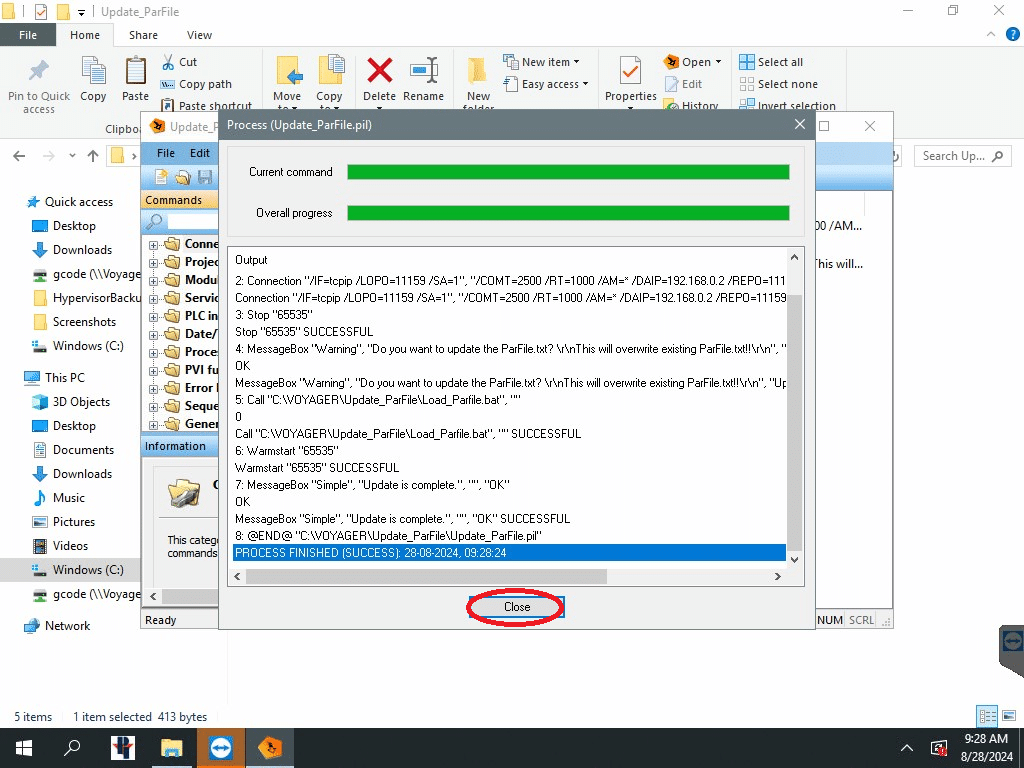
X out of this box.
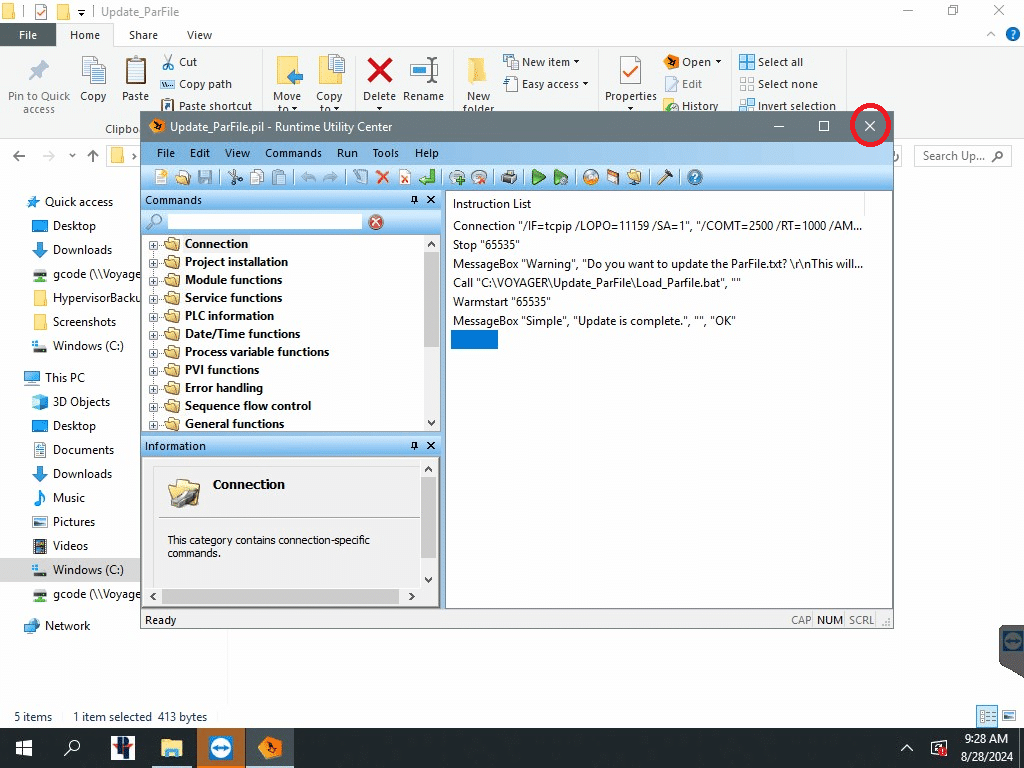
X out of this box.
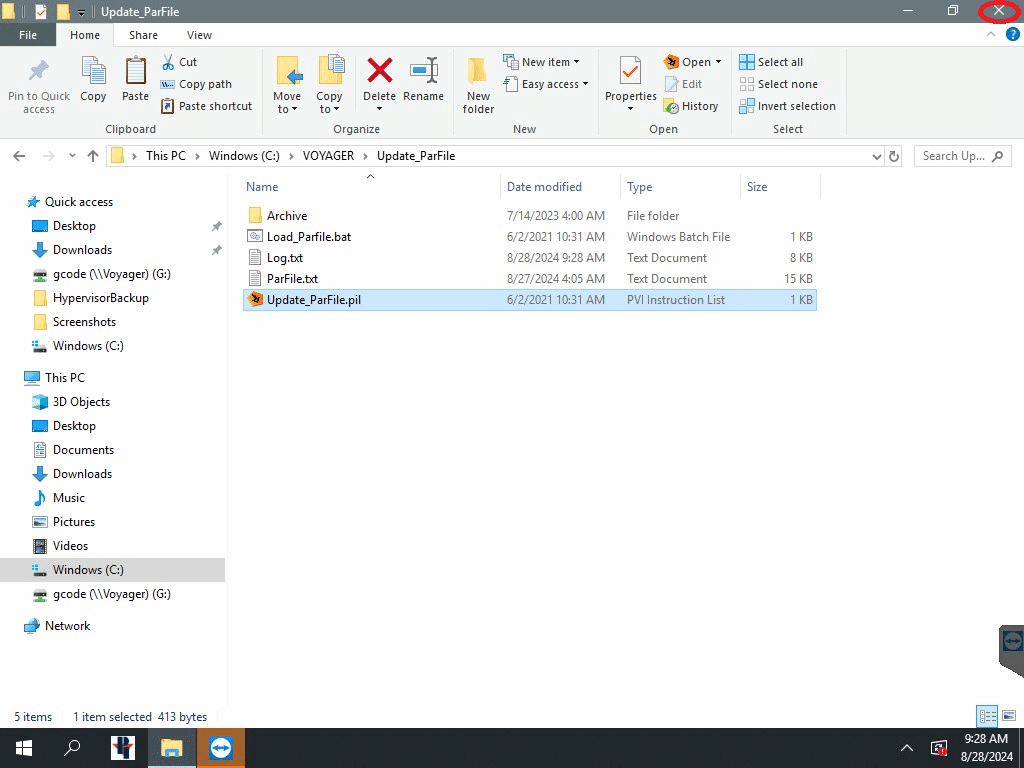
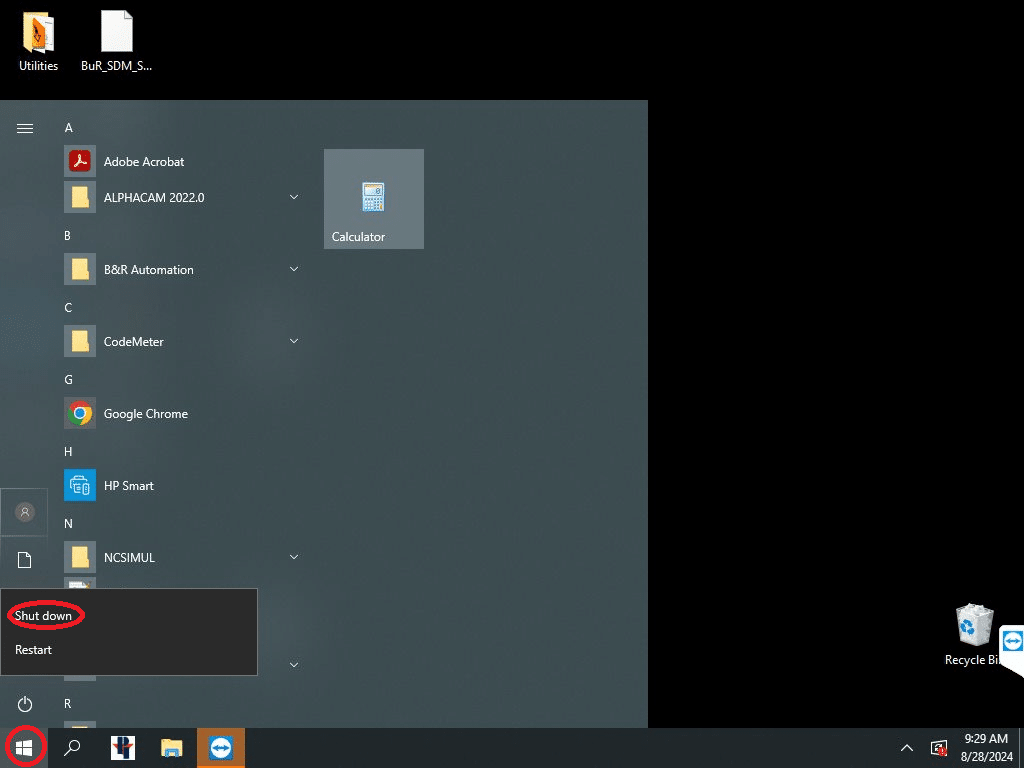
Go to Windows and Shut down. Make sure the screen is fully shut down and power the machine off for 1 minute. Power back up and check your values. You can run now.
Your values are only good from the date that the par file was last modified. Anything you have changed since will have to be redone!